From a pinned comment to a code change with MCP
Give your coding agent the context. Keep the conversation with your team.
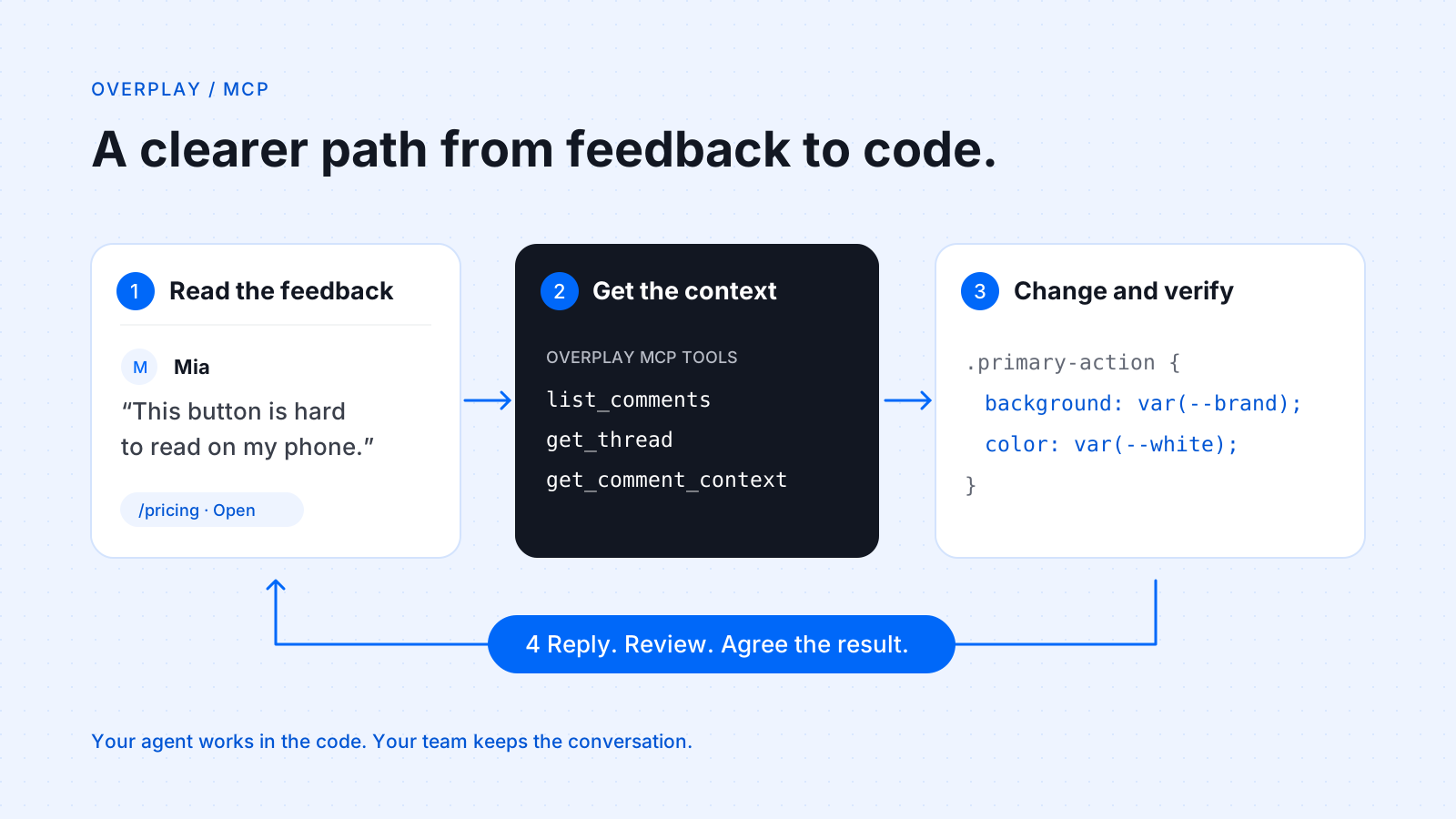
“The button is hard to read on my phone.”
It is a small piece of feedback. Turning it into a useful change can still involve several handoffs: find the page, identify the button, read the discussion, and explain the request to the person working on the code.
A coding agent can help with the implementation. First, it needs the same context a teammate would need. That is where Overplay’s MCP server fits: it gives a connected agent tools to read website feedback and take permitted actions in the conversation.
This story walks through a practical example, from a pinned comment to a change ready for review. You can use the same structure for spacing issues, confusing labels, or small interaction improvements.
Start with the request, where it happened
Imagine a client reviewing a pricing page. They pin a note to the main action on the Pro card and explain that the text is difficult to read. A teammate replies that the problem is most noticeable at phone width.
The useful starting point is the whole thread. The original comment gives the request a place. The reply adds a condition the implementation needs to address. Copying only the first sentence into an agent chat can lose that detail.
With Overplay MCP, the agent can read that feedback directly from the projects you share with its connection. The team keeps its discussion on the website while the developer works in their coding workspace.
Connect the right context
MCP stands for Model Context Protocol. It gives compatible AI applications a common way to connect to tools and data. In this workflow, Overplay supplies the feedback tools. Your coding agent supplies the workspace, code-editing tools, and any browser tools it has available.
Set up a connection from the MCP Server page in the dashboard. Choose the projects and permissions it should have, then follow the connection instructions for your agent. The MCP guide is the place to start with setup.
Read access is enough to inspect feedback and prepare a plan. Reply access lets the agent report progress in a thread. Resolve access lets it resolve or reopen a thread when that action is part of your agreed process. Code editing happens in the agent’s own workspace; connecting Overplay does not give it a copy of your website’s source files.
Element context also depends on the connection’s sharing settings. When it is available, it helps the agent understand which part of the page a comment refers to. You can change access or disconnect a connection from the dashboard.
Read before changing
A useful first pass is small and specific: find the relevant project, read its open feedback, and inspect one thread. Start with the read tools below. The other permission groups let your workflow reply, resolve feedback, edit comments, or manage projects when you grant that access.
All 20 MCP tools
Five permission groups. Each connection only gets the tools its access allows.
Read Read comments
list_projects- Lists the projects you shared with the agent.
get_project- Shows one project: its websites, members and settings.
list_comments- Lists comments, newest first. Filter by page, status, author or date, with reply counts.
search_comments- Finds comments by words in the note, the replies or the element name.
get_thread- Reads one comment with all its replies, authors and dates.
get_comment_context- Returns saved element context, such as its selector, anchor key, label and page. It does not inspect the live website.
list_activity- Shows recent project activity: new comments, replies, resolves and agent actions.
Reply Reply
reply_to_comment- Posts a reply as you. The thread shows the agent name next to it.
Resolve Resolve and reopen
set_comment_resolved- Resolves a thread when the fix is done, or reopens it.
Edit Create, edit and move pins
create_comment- Adds a new pinned comment, for example a question for the team.
update_comment- Changes the text or the pin of your own comment.
delete_comment- Deletes a comment you are allowed to delete.
Admin Manage projects
create_project- Creates a new project.
update_project- Changes a project's name or websites.
list_members- Lists the members of a project.
add_member- Adds a member by email.
remove_member- Removes a member.
list_join_requests- Lists people who asked to join.
answer_join_request- Approves or declines a join request.
delete_project- Deletes a project you own.
The distinction between saved context and a live page matters. A selector, label, or pin location gives the agent a reference. It does not prove the website still has the same structure, and it does not identify a source file by itself.
For our button example, the agent should open the page with its browser tools, inspect the element, and find the matching component or style in the workspace. If the reference is missing or ambiguous, it should ask for clarification instead of guessing.
Build a useful feedback-to-code loop
Once the request is understood, the workflow can stay simple. Work on one clear issue, keep the change focused, and return the result to the same conversation.
- Read the request and the replies. Confirm which page and element need attention, and what a successful change would look like.
- Inspect the current page and code. Use the saved context as a reference, then verify it against the actual website and workspace.
- Make the smallest useful change. For the example button, adjust the relevant styling without redesigning the entire pricing page.
- Check the result. Run the project’s relevant checks and inspect the changed page at the screen sizes mentioned in the feedback.
- Reply with a clear handoff. Explain what changed, what was checked, and where the reviewer can see it. Leave the thread open until the agreed review is complete.
This also works during a build. A designer can review an early implementation, pin the next adjustment, and let the agent use that feedback in the next pass. The thread becomes a shared record of the iteration rather than a separate list somebody must keep copying into chat.
The useful loop is not just “read, then edit.” It is “understand, change, verify, and return the result to the conversation.”
Give the agent a brief it can act on
A short prompt can define the scope and the point where the agent should hand the work back. Here is an example to adapt after connecting your project:
Read the open feedback for the pricing page in my connected Overplay project. Read the full thread and saved element context for the primary button issue. Inspect the current page and find its implementation in this workspace. Make a focused fix, run the relevant checks, and verify the result at desktop and phone widths. Reply in the thread with what changed and what remains unverified. Leave the thread open for my review. Do not deploy.
The exact tools an agent can use depend on its client, workspace access, and the permissions you grant. If it cannot inspect the browser or run a check, its reply should say so. A local change is not a deployed change.
Keep review in the loop
MCP can reduce the copying between tools while keeping the team’s conversation in one place. Replies posted through Overplay MCP act as the connected user, with the agent identified in the thread. Project Activity gives the team a record of agent actions.
Comment text remains user content. It can explain the desired result, but it should not override the instructions or access rules for the coding task. Overplay’s MCP server makes that distinction in the context it supplies to agents.
You can build a workflow around this loop in an agent or another tool you control. A recurring or unattended process needs its own runner, triggers, and review rules. Connecting MCP alone does not schedule it. Overplay’s project Workflows are a separate way to configure automation in the dashboard.
Start with one request and one review. Once the handoff works for your team, repeat it. The goal is a shorter path from what someone noticed on the website to a verified change everyone can understand.
Give your agent a clearer starting point.
Explore the available tools and choose the access your workflow needs.
Explore Overplay MCPThe pricing-page scenario is illustrative. For protocol background, see the official MCP documentation on calling tools.

Website feedback, pinned to the right place.